Inspirational journeys
Follow the stories of academics and their research expeditions
Android Developer Interview Questions and Answers for 2027 - Updated

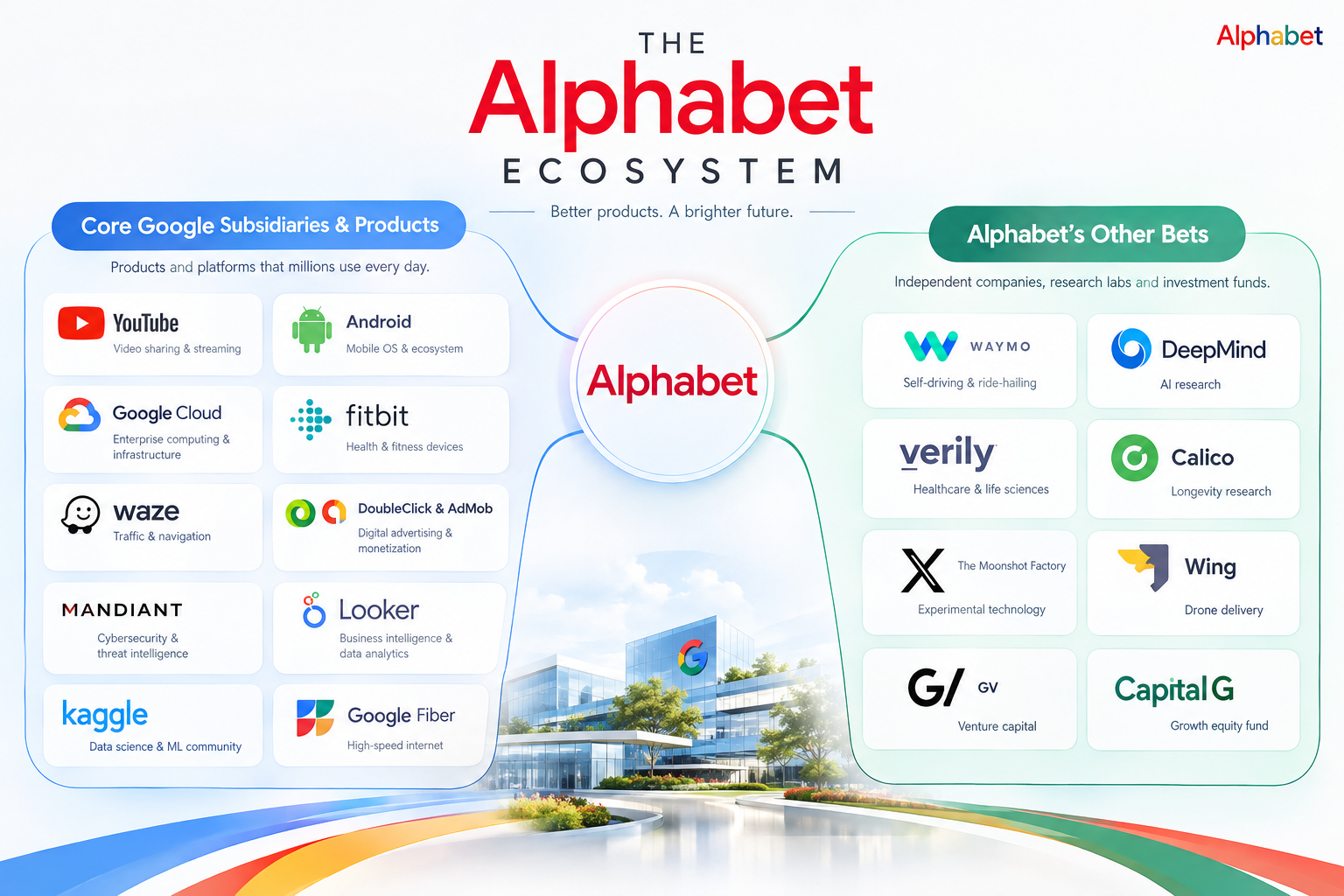
It's a dream of every software engineer to work for Alphabet. For those who don't know, Alphabet Inc. is a father company that owns all of the entirety of Google and all its subsidiary companies. Here is a list of what Alphabet Inc. owns. I am providing this just in case you want to work in any other company similar to Google.
Android is a Linux-grounded open-source operating system. It was originally created by Andy Rubin and has become one of the most extensively used smartphone OSs globally today. It still stands strong as one of the most reliable OS, compared to the iOS. This makes working with Android one of the most sought-after job roles.
Due to Android’s fashionability, there's a high demand for Android development places. This interview preparation companion is designed to help both freshers and educated professionals prepare effectively if you're looking for a job in Android development.
Before we start to prepare you for the interview, let me show you the vacancies available in some of the trending job roles for 2027.
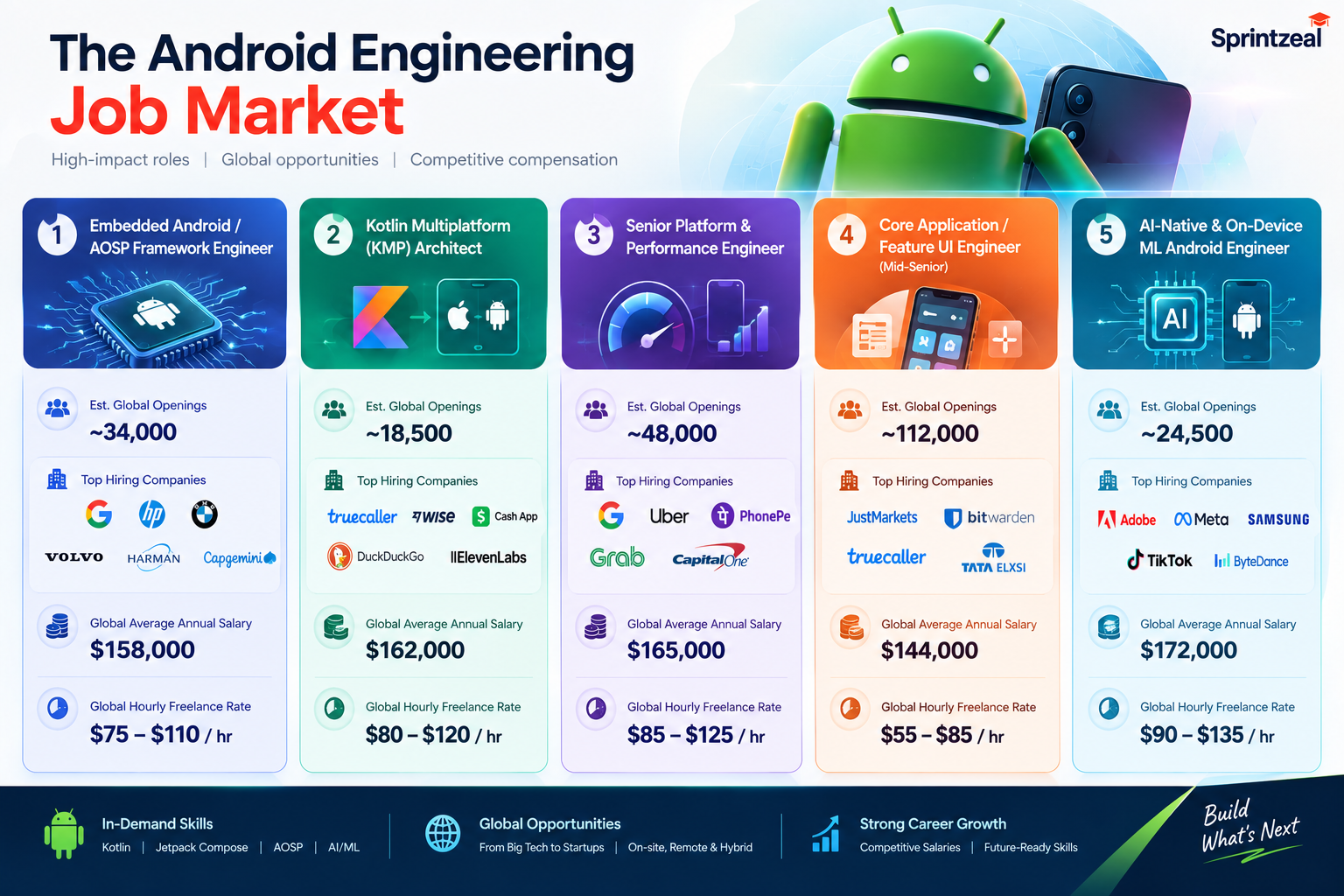
Below are some generally asked questions that can help you in excelling during your interview.
Starting off with beginner-level Android interview questions
Table of Contents
- Beginner-level Android Interview Questions
- Intermediate-Level Android Interview Questions
- Android interview questions for senior developers
- Frequently Asked Questions On Android Interviews
- Conclusion
Beginner-level Android Interview Questions
(Android interview questions for freshers )
Let's break down the 17 concepts you actually need to know to survive Android development right now. No fluff. Just the reality of the stack.
1.What is Android, and what version are we building for?
Android is an open-source beast now. I’m seeing my code run on smartwatches, TVs, cars running Android Auto, and Chromebooks. As of right now, if you're not maintaining legacy code, you're targeting Android 17. That's API level 37, codenamed Cinnamon Bun. It dropped in June 2026. (If you're still cleaning up last year's code, we might be working for Android 16, API 36).
2.Break down the OS stack. What are we actually building on?
I see the Android OS stack like a five-layer cake.
At the bottom is the Linux kernel. Without having to code the hardware power states, the kernel takes care of everything.
Above that is the (HAL) Hardware Abstraction Layer. This is like a bridge to high-level Kotlin code. This helps communicate with the camera or the Bluetooth chip.
Then we have the Android Runtime (ART) & Core Libraries. This is where everything is compiled and executed. It is a high memory-consuming layer, needing planned memory optimization.
The next level is the Native C/C++ Libraries handling raw performance. We have WebKit for rendering, OpenGL for graphics, and SQLite for the local databases.
Finally, at the very top, is the Java API Framework. This is where you and I live. It's the UI components, the activity manager, and the stuff we touch daily.
3.What happens under the hood between hitting "Build" and the app actually running?
You write your Kotlin. You hit build. Gradle spins up (and hopefully doesn't throw a cryptic caching error), chewing your code, XML, and resources into an AAB (Android App Bundle) or an older APK.
Your human-readable logic becomes bytecode. When a user taps your app icon, ART fires up. Here’s the brilliant part of the OS: Android treats every single app as a completely separate user. It hands your app a unique ID and throws it into an isolated sandbox. If my app hard-crashes because of a botched network request, it dies alone in its sandbox. It doesn't take down the user's entire phone.
4.What's the deal with Activities? Why no main() function?
Forget what you learned in CS 101. We don't have a main() function here. The entry point for the user is an Activity. Every app needs at least one. The OS wakes your app up by calling specific lifecycle methods based on what the user is doing. It’s the literal starting line for user interaction.
5.Why do I see juniors constantly messing up setContentView() in onCreate()?
Because they don't realize onCreate() just builds an empty shell. When the activity boots up in onCreate, there is zero user interface. If you stop there, this could result in a black screen.
To solve this, you would have to call setContentView(R.layout.activity_main). It inflates your XML layout and adds the styles to the buttons and text. This lets the user actually tap on them.
6. Walk me through the Android activity lifecycle without sounding like a textbook.
You have to master this. It's not optional.
onCreate():
Ground zero. You initialize variables and set up the UI.
onStart():
The app is visible on screen, but they can't touch it yet.
onResume():
We are in the foreground. Full interaction.
onPause():
The user gets a phone call, or a system dialog pops up. You lost focus. Save your state here, fast.
onStop():
The app is officially off-screen.
onDestroy():
The OS needs memory, or the user swipes your app away. It's dead.
7. What is a Fragment and why do we complicate things with them?
Fragments as modular sub-activities. We needed them when tablets got popular and used a completely new layout. We had to show a list on the left and details on the right without writing two different apps.
They parasitize off a host activity. They have their own lifecycle, they receive their own inputs, but they are entirely dependent on the host to exist.
8.How does the Fragment lifecycle differ from others?
The fragment lifecycle is tied to the host activity. But it also has extra steps for UI rendering. It is very tricky.
You get onAttach() when it links to the host, then onCreate().
Then onCreateView() builds the user interface using XML. Then onViewCreated() comes next.
After that it connects with the host during onStart() onResume() onPause() and onStop().
In the end onDestroyView() takes away the user interface, onDestroy() gets rid of the fragment and onDetach() cuts the connection from the host.
9.Why is putting UI logic in onCreateView() a massive red flag?
onCreateView() has just one job. It elevates the XML and returns the View object.
If you try to find a button and set a click listener there, you're begging for a NullPointerException because the layout might not be fully baked. Do all your UI logic inside onViewCreated(). It fires immediately after, guaranteeing the UI components are fully initialized and safe in memory.
10.Bottom line: Activity vs. Fragment.
Dependency:
An Activity stands alone. A Fragment must be embedded in an Activity.
Lifecycle Control:
Android OS manages the Activity. The host's FragmentManager manages the Fragment.
Weight:
Activities are heavy and handle full-window transitions. Fragments are modular, letting you build dynamic, multi-pane UIs.
11.What exactly is a View?
Everything you see is a View. It's just a rectangle on the screen. A Button, an EditText, an ImageView. It draws the pixels and listens for your thumbs.
12.Then what is a ViewGroup?
A ViewGroup is an invisible container. Technically, a ViewGroup is just a subclass of a View. It holds Views (or other ViewGroups) and tells them where to sit. ConstraintLayout, LinearLayout, FrameLayout are ViewGroups.
13.Why are we still writing front-end in XML?
Because it works. XML describes data so both humans and machines can read it fast. It’s lightweight, meaning faster UI rendering. It forces a hard separation between your visual design and your Kotlin business logic. It’s highly readable, and it handles deeply nested layouts while keeping the code perfectly structured.
14.What are the five pillars of an Android App?
An Android App is made of five layers that are connected together in the AndroidManifest.xml file. The Android OS cannot imagine the existence of Android Apps unless Android Apps are declared in the AndroidManifest.xml file.
- Activities
- Services
- Broadcast Receivers
- Content Providers
- Intents
15. What is a Toast?
Toast is a non-blocking bubble of text that pops up. It's generally used in designs for quick feedback and fades away automatically. Since it's non-blocking, the user can keep tapping things behind it.
16.Explain Context, and specifically, the memory leak trap.
If there's one concept that will save your career, it's understanding Context. It's your app's environment. It's how you access resources or inflate layouts.
But passing the wrong one will crash your app. Activity Context is tied to the Activity. Use it for UI stuff, like showing a Toast or a Dialog. When the Activity dies, this context dies. Application Context is tied to the whole app. Use this for background tasks or singleton databases.
Passing an activity context to a singleton database instance creates a new activity when users rotate their phone. But this database is still holding onto the old activity in memory. This causes a massive memory leak.
17.What do you hate the most about Android development?
I love this platform, but I won't lie about the pain points.
Fragmentation:
It's brutal. You are building for thousands of different screen sizes, aspect ratios, and cheap hardware configurations. Testing is a nightmare.
Performance Variability:
What runs buttery smooth on a flagship Pixel might stutter violently on a budget phone because the Java Garbage Collector decided to pause the main thread.
Security:
It's open-source. Users can sideload third-party APKs from anywhere. If they aren't careful, the risk of malware is just statistically higher here.
We deal with these constraints daily. We write better code, we test on terrible devices, and we plug the memory leaks. That's the job.
Intermediate-Level Android Interview Questions
(Android interview questions for experienced )
So you survived the basics. You know your activities from your fragments, and you aren't leaking memory every time a user turns their screen. Good.Now we need to talk about how the pieces talk to each other. How we show data without using up all the RAM.How we deal with the background limits Google keeps adding every year.
Here are the intermediate-level questions and answers that separate the juniors from the devs.. I actually trust to push code to production.
18.What is the Android Manifest file. Why do we care about it?
The AndroidManifest.xml file is like a checklist for the app. If a component is not listed in the file the OS will never know about its existence. It provides such details to the Android system before running the Kotlin code.
You declare your activities and services in the same file. You ask for user permissions here (camera, location, and network access). You define which screen is the main entry point. Then you set up your Intent Filters.
If the app runs without registering an activity, it crashes with an ActivityNotFoundException error.
19.Break down the different layout types. Which ones do we actually use?
A layout is just the invisible scaffolding that holds your UI together.
ConstraintLayout:
This is the gold standard. Use this 95% of the time. It lets you anchor UI elements to each other, creating completely flat view hierarchies. Deeply nested layouts destroy rendering performance, and ConstraintLayout fixes that.
LinearLayout:
Stacks things in a single row or column. Great for dead-simple, static UI components.
FrameLayout:
Literally just stacks views on top of each other like a deck of cards. I use this constantly as a container for injecting Fragments.
GridLayout:
Exactly what it sounds like. Good for a rigid table of items.
RelativeLayout:
This is legacy garbage. We used to use it to position views relative to each other, but ConstraintLayout does it better, faster, and cleaner. Stop using it.
20.What is a RecyclerView, and why does the ViewHolder pattern matter?
For example, If you try to display a list of 1,000 items and you create a new View object for each, the phone will run out of memory and kill the app.
RecyclerView is how we display massive datasets. It works with the ViewHolder pattern. Instead of listing all 1,000 views, the system only creates the 10 or 12 views. This will fill the physical screen matching the layout and add a couple of extras at the end.
With this, when you scroll down the item that disappears from the top but it's not destroyed. It gets recycled instead. The OS hands that exact same view back to the bottom of the list.
The onBindViewHolder() method swaps out the old data for the new. This literally recycles pixels. It reduces CPU overhead and keeps the frame rate buttery smooth.
21.What are the four Android-supported dialog boxes?
You'll need to interrupt the user eventually. We generally reach for these four:
Alert Dialog:
The classic popup. Usually has a title, a message, and a couple of buttons (like "Accept" or "Cancel").
Date Picker Dialog:
A standardized calendar popup.
Time Picker Dialog:
A standardized clock popup.
Progress Dialog:
Officially deprecated. Stop using this. It locks up the UI and creates a terrible user experience. If you need to show loading states, embed a ProgressBar directly inside your layout.
22.What's an Intent? Give me the two types.
An Intent is a message you send to the OS declaring your intention to do something. You want to open a camera? Start a background service? Move to another screen? You need an Intent.
Explicit Intents:
It’s commonly used within the same application when you know the exact class you want to start. For example, moving from FirstActivity to SecondActivity in your app requires an explicit intent.
Implicit Intents:
They declare a general action to do and any app that can handle that action will respond. For example if you want to open a webpage or show a location, on a map you can use an intent.
23.What is a PendingIntent. When do I use it?
I think of a PendingIntent, as a VIP backstage pass that I give to an application. Normally an Intent runs away inside my application. What if I want the Android Notification Manager to open my application when the user taps a push notification three hours from now long after my application has been closed and stopped? I wrap my Intent inside a PendingIntent. Hand it to the operating system. Because I created the PendingIntent it keeps my applications security settings. The OS can execute it later, on your behalf, with your exact permissions. We use these constantly for Notifications, Alarms, and Home Screen Widgets.
24.What actually makes up the Android SDK?
The Software Development Kit of Android is the toolbox we use to build, debug, and package these apps. Some components from these SDKs are
Android Emulator:
It's a phone that works on the desktop. It gives an Android environment to test the app.
Android Debug Bridge (ADB):
This is a command-line tool that's very useful. This is how the IDE links with the device, through USB or Wi-Fi. It helps install builds or pull crash logs.
Android Profiler:
It's used to monitor memory leaks and CPU spikes and track delayed network requests.
AAPT (Android Asset Packaging Tool): The silent hero that compiles all your raw XML and images into the final binary.
25.Let's talk Jetpack. What are android jetpack components, and what nightmare did it fix?
Android Jetpack is Google's massive suite of libraries and architectural guidelines.
Before Jetpack Android development was like the Wild West. You had to write lines of code to handle local databases and keeping track of when things started and ended was really hard. If someone turned on their phone the screen changed, the activity stopped working, the network request, in the background didn't get a response. The app stopped working.
Jetpack gave our stack a lot of calm. Jetpack brought in Architecture Components, such as ViewModel and Room that help us keep code tidy. Jetpack also added UI toolkits like Jetpack Compose, which makes building interfaces easier. Jetpack gives us components that keep older devices happy such as AndroidX. We do not build modern apps without Jetpack.
26.Explain ViewModel. How does it survive a screen rotation?
This is a critical Jetpack component. ViewModel stores and manages UI data in a way that actively respects lifecycles.
When the user rotates the user's phone from portrait, to landscape the OS ruthlessly. Recreates the Activity. If the user stored the user form data, in the Activity variables the data will be lost.
The ViewModel exists outside the Activity's life cycle. It remains safely in memory that is managed by the ViewModelStore. When the Activity is destroyed and then rebuilt during rotation the Activity simply reconnects to the ViewModel. Your data is instantly recovered without needing another expensive network call.
27.Why do we use Room Database instead of raw SQLite?
The room is the official Jetpack persistence library. It's a clean abstraction layer over the legacy SQLiteOpenHelper.
Writing raw SQLite in Android was miserable.You had to map database cursors to your objects and that process was very prone to mistakes. Room solves this problem. First it automatically handles the object- mapping or ORM so you don’t have to write all that boilerplate code. Second it checks your SQL queries at compile time. If there’s a typo in your query the app won’t build. That means you find the error in your IDE not after the app is running and crashes in production. Finally, Room works with Kotlin Coroutines and LiveData. It automatically sends database changes to your UI so your app stays up to date without effort.
28.What are Services? Break down the restrictions.
A Service runs long operations in the background without a UI. But you have to be careful—Google has severely restricted them to stop lazy developers from draining user batteries.
Foreground Services:
Use this for tasks that the user really knows about such as a music player or a GPS run tracker. You are legally required by the operating system to show a notification. Because the user is aware of it the system gives it priority and rarely kills it.
Background Services:
Used for silent operations like data syncing. Honestly, these are basically dead. Modern Android versions will ruthlessly hunt down and kill background services shortly after the user leaves your app to save battery.
Bound Services:
Think of this as a client-server relationship. Your Activity "binds" to the service to send data back and forth (IPC). The service only stays alive as long as something is actively bound to it.
29.If Background Services are dead, what is WorkManager?
WorkManager is the Jetpack solution for the battery-saving massacre I just mentioned.
If you have a task that needs to happen on the current screen (like getting a user profile) use a Kotlin Coroutine.
If you have work that can be done later in the background—like sending large analytics logs making an image smaller or updating a local database—you use WorkManager. WorkManager keeps going even after the app's closed and even after the device restarts. You can set rules for it like "Only do this upload when the phone is on Wi-Fi and charging." WorkManager takes the request, follows the phone's power rules and makes sure the job is done sometime.
Android interview questions for senior developers
Alright you've made it past the basics and the middle challenges. If you're going for a Lead role no one cares if you know how to center a button, in XML. They want to know if you can design a reactive application without slowing down the performance or using too much memory.
This is the part that sets the code monkeys apart from the real engineers. Welcome to the challenge.
30.How do you go about making custom views in Android?
Sometimes the UI elements that come with the system aren't enough. When the design team gives you a moving completely different kind of graph you need to make it yourself.
Here is the plan for making a custom view, from the beginning:
Extend the View class:
You create a new subclass (or extend an existing one). To actually take control of the pixels on the screen, you override the onDraw(canvas: Canvas) method.
Handle user interaction:
A view isn't much good if it doesn't react. You override onTouchEvent() to intercept raw screen taps, swipes, and pinches.
Define custom attributes:
You don't want to hardcode colors and sizes. You create custom XML attributes in res/values/attrs.xml so you (or other devs) can easily configure the view directly in the layout files.
Inflate it:
Finally, you drop your fully qualified class name into your XML layout, or invoke it directly via Jetpack Compose interoperability.
31.DVM vs. ART. What’s the difference and why does it matter?
If you don't know how your code is being executed, you can't optimize it.
DVM (Dalvik Virtual Machine) is the ghost of Android. It relied on Just-In-Time (JIT) compilation, meaning it compiled your app's bytecode into machine code on the fly as the user was running the app. It was designed for ancient phones with zero storage space, but it chewed up battery life and CPU cycles like crazy.
ART (Android Runtime) is the modern standard. It introduced Ahead-Of-Time (AOT) compilation (and now a hybrid AOT/JIT model). Now, when the user downloads your app, ART immediately compiles your bytecode into native machine code during installation.
The tradeoff? Apps take up a little disk space and need a few seconds longer to install. I have noticed that the benefit of Apps is performance improvements, very smooth user interface rendering and much better battery life because the CPU does not have to translate code all the time.
32.How do you actually hunt down and fix performance problems?
"The app is slow" is a developer's worst nightmare because it could mean anything. Here is my standard diagnostic playbook for keeping users happy:
UI Thread Blocking:
The golden rule of Android—never block the Main thread. If you are doing network calls or database queries on the UI thread, the app will stutter and crash (ANR). Offload everything heavy to Kotlin Coroutines or WorkManager.
Memory Leaks:
When a user spends twenty minutes on your app and it crashes a leak probably exists. I immediately connect LeakCanary in debug builds and use Android Studio Memory Profiler to make sure that rogue Context references or huge Bitmaps are really being released. This helps confirm that the leak is not caused by leftover Context objects or massive Bitmaps that have not been deallocated.
Inefficient Layouts:
Deeply nested LinearLayouts require the OS to measure the screen multiple times per frame. Flatten your view hierarchy using ConstraintLayout, or better yet, just migrate to Jetpack Compose.
Network Bloat:
Stop downloading 4MB payloads for a simple list. Use caching strategies, implement pagination, and compress your data.
- How do you handle third-party dependencies without breaking the app?
Adding a library is easy. Managing dependencies when a project hits a million lines of code is a nightmare if you don't have a strict system.
Gradle is King:
We declare all our third-party libraries via Gradle in the module-level build.gradle.kts file.
Repositories:
Gradle pulls these pre-compiled binaries from remote servers like Maven Central or Google's Maven repository. (If you still see JCenter in a codebase, delete it. It's officially dead).
Version Catalogs:
The modern standard for avoiding version conflicts across multi-module projects is using a libs.versions.toml file. It centralizes all your dependency versions in one place.
Dependency Injection:
We don't just instantiate library objects willy-nilly. We use robust DI frameworks like Hilt or Dagger to inject these dependencies systematically and manage how long they live in memory.
34.What are Kotlin Coroutines, and why did we ditch standard JVM Threads?
If you suggest using standard JVM threads in a modern Android interview, you will fail.
Traditional JVM threads are incredibly heavy. They map directly to OS-level threads. If you create 1,000 of them you will crash the app with an OutOfMemoryError.
Coroutines are virtual threads that the Kotlin runtime manages, not the operating system. I can start 100,000 coroutines at the time, on one background thread without any trouble. Coroutines use suspend functions to pause their work and give the thread to another coroutine while waiting for a network response so coroutine does not block threads at all. They are the absolute standard for modern async work.
35.Explain the exact difference between launch and async in Coroutines.
Both are builders that start concurrent work, but they handle the aftermath entirely differently.
launch:
This is "fire-and-forget." It returns a Job object that doesn't carry a resulting value. Use this when you don't need a return result—like firing off an analytics event to a server or writing a quick log to a local database.
async:
This is when you want an answer to come back. It gives an object (imagine it as a simple not blocking Future). You start the task, work on things and later use.await(), on it to get the final result after the background work is done.
36.What is Kotlin Flow, and how do StateFlow and SharedFlow differ?
RxJava is largely a thing of the past. Kotlin Flow is our modern, native reactive data stream. It emits values sequentially over time.
StateFlow:
This is for UI State. It always holds exactly one value (it requires an initial state), and it conflates updates. If your background sync pushes 50 state updates a second, but the UI can only render 10, StateFlow drops the intermediate ones and only gives the UI the latest, most relevant data. It is the modern replacement for LiveData.
SharedFlow:
This is for events. Navigation triggers, Snackbar messages, or error popups. It doesn't require an initial state, it doesn't inherently hold state, and it can be configured to replay past events to new subscribers.
37.How does "Recomposition" actually work in Jetpack Compose?
Jetpack Compose fundamentally changes how we build UIs. It's a declarative toolkit.
In the old XML days, if data changed, you manually updated the widget: myTextView.text = "New Text".
In Compose, you bind your UI directly to a State object. When that state changes, Compose triggers Recomposition. The framework is really smart. It looks through your UI tree. It finds the exact composable functions that use that specific piece of state. Then it runs those functions again to show the data. Everything else in the UI is left alone. It doesn’t touch anything.. It's brutally efficient and eliminates manual UI bugs.
38.MVVM versus MVI. What is happening with app architecture?
MVVM (Model-View-ViewModel):
The industry standard. The View looks at the state from the ViewModel. The ViewModel connects to repositories. Data goes down. Events like button clicks start method calls on the ViewModel.
MVI (Model-View-Intent):
This is the future growing quickly with Jetpack Compose. MVI enforces an Unidirectional Data Flow. By calling 15 different methods on a ViewModel the View sends a single "Intent" (a sealed class that shows an action, like LoadUser). The ViewModel processes this. Returns a single immutable UiState object that shows the whole screen. It ensures state is always consistent.
Frequently Asked Questions On Android Interviews
1.What is the best way to get ready for an Android interview?
Focus on the modern stack. Learn Activity and Fragment lifecycles, UI rendering, concurrency (Kotlin Coroutines) and local databases (Room). Do not forget core computer science—you will still need to work on coding questions and explain your architectural choices (like MVVM).
2.What exactly is an Android lifecycle?
Android activity lifecycle is a set of stages that a component passes through.
The Android activity lifecycle starts with creation handled by onCreate.
Then the component becomes visible, with onStart and onResume.
When the component goes to the background the Android activity lifecycle calls onPause and onStop.
Finally when the component is removed completely the Android activity lifecycle ends with onDestroy.
Knowing onCreate, onStart, onResume, onPause, onStop and onDestroy is essential if you want to avoid crashes and memory leaks.
3.What is Gradle in Android?
Gradle is the automated build tool. When I work on my Android app Gradle takes my Kotlin code, XML files and third‑party libraries, compiles them all together and packages them into the AAB (Android App Bundle) or APK that users actually install.
4.What is Maven on Android?
Maven refers to the repository system. We use Maven Central or Google's Maven repository— online servers where thousands of developers put third-party libraries (like Retrofit or Glide) so you can easily get them into your project via Gradle.
5.What kind of coding questions are asked?
Expect Data Structures and Algorithms (Arrays, HashMaps, Strings). However Android interviews have a lot of domain- tests: expect to be asked to build a complex UI list, handle multi-threading situations or fix a fake crash log.
6.How should I organize my preparation?
First review core Modern Android Development (MAD). Jetpack ideas. Then practice core problems. Finally build real-world projects so you can confidently talk about the choices you made in past apps.
7.What programming languages do I need to know?
Kotlin. End of story. While some old enterprise apps still use Java, Kotlin has been Google's preferred language since 2019. Expect over 90% of interviews to require Kotlin.
8.Where are the best places to practice?
LeetCode, HackerRank and CodeSignal are common for algorithm practice. For architecture I think you should stop reading tutorials and instead look at Googles open-source sample projects on GitHub to see how enterprise code is really written.
9.Where can I find practice questions?
Medium, Stack Overflow and tech blogs are good sources but your main source of truth should always be the official Android Developer Documentation.
10.Why did Google stop using AsyncTask?
AsyncTask was used for background threading in the past. It was removed in API 30 because it was fundamentally wrong. It caused memory leaks when the screen rotated, ignored exceptions and missed UI updates. It has been completely replaced by Kotlin Coroutines for async tasks and WorkManager for guaranteed background jobs.
Preparing for an Android interview needs a grasp of basic ideas. Experts should also get used to using development techniques. This article was made with professionals of all levels, like freshers. Experienced people in mind. This content will improve your confidence. Help you do well in your interviews.
Conclusion
Preparing for an Android interview needs a strong understanding of fundamental concepts. Professionals should also get used to practicing advanced development practices. This article was designed keeping in mind that professional of all status like fresher and experienced professionals. This content will boost your confidence and help you ace your interviews.

Categories
Related Posts

Excel vs Power BI: Which Is Better?
Thu, 16 July 2026

How to Become a Full-Stack Developer: A Step-by-Step Guide
Fri, 31 January 2025

Test-Driven Success: How Jenkins Turns TDD into a Breeze!
Tue, 18 February 2025

Top Docker Interview Questions And Answers 2027
Wed, 14 October 2026

Can Low-Code Platforms Really Save Time and Costs in IT Projects?
Fri, 30 May 2025

How to Become a Laravel Developer in 2026: A Step-by-Step Roadmap
Wed, 28 May 2025

10 Best Mulesoft Integration Service Providers in 2026
Fri, 23 May 2025

5 Programming Languages That You Should Learn
Wed, 18 June 2025
Understanding LMS: The Go-To Guide
Fri, 18 July 2025



 USA : +1315-322-7821
 UK : +44 7700 174870
 IND : +919036108287
 AUS : +61 480 005 455